Skip to content
QSO App markQSO App
Home
Get on the air
Near youFirst ContactLookup
Community
ClubsSchoolsLearn
Explore
TourFor clubs
Logbook
Try the demoDemoSign in
QSO App is free to use.DemoRequestsIntegrationsStyle guideFAQContactYour dataTermsAPI73 de N2PYZ
  1. 1. Pick your radio
  2. 2. Who can I reach
  3. 3. First contact, through a repeater
  4. 4. Simplex, when somebody is listening
  5. 5. Milestones
Explorer QRZ-1

Explorer QRZ-1

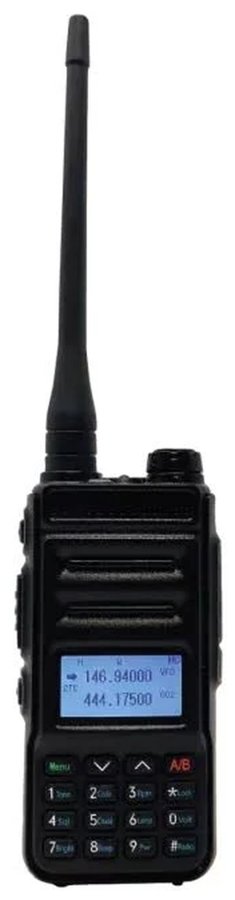
The radio most new US hams hold first (QRZ Jumpstart). The menu numbers below are the ones in its printed manual, so what you read here is what the screen shows.

Photo: Explorer product photo

The keys you will use

Knob on top
turns the radio on and sets the volume. Turn until it clicks, then about a third of the way.
PTT
the big button on the side. Push to talk, let go to listen. It also gets you out of any menu.
MONI
the small button under PTT. Hold it to hear everything on the frequency, static included; handy for setting the volume.
MENU
opens the settings. Inside a setting, MENU also means "start changing it" and "save it".
▲ ▼
move up and down a list, or nudge the frequency.
# Radio
switches between typing a frequency (the screen shows a frequency) and a saved channel (the screen shows a channel number). Hold it and you get the FM broadcast radio; hold it again to come back.
A/B
the screen shows two lines, A and B, and an arrow points at the one that is live. A/B moves the arrow. It also backs out of a menu.
✱ Lock
hold for two seconds to lock or unlock the keys.
Number keys
type a frequency, or jump straight to settings 1 to 10.

How the menu works

The whole radio is one list of 27 numbered settings, and every change goes the same way:

  • Press MENU. The screen shows a setting and its number.
  • Settings 1 to 10: press the number, and the value is ready to change.
  • Settings 11 to 27: press ▲ or ▼ until the number shows, then press MENU once more to start changing it.
  • Press ▲ ▼ to pick the value, or type digits where a step says so.
  • Press MENU to save. Press PTT to leave the menu.

If a key does nothing, the keypad is locked: hold ✱ Lock for two seconds. If the screen shows a channel number where you expect a frequency, press # Radio once.

Set it up, in this order

  1. Charge it and put it together

    The battery ships part-empty. Charge it in the cradle until the light turns green. Slide the battery onto the back until it clicks, and screw the antenna on clockwise until it is snug. Never press PTT without the antenna on.

  2. Turn it on and set the volume

    Turn the top knob until it clicks, then keep going to about a third. Hold MONI: you should hear static. Set the volume so the static is clear but not loud, then let go of MONI.

  3. Start from the factory settings

    So the radio matches this guide, reset it once. It has no channels yet, so nothing is lost.

    • Press MENU, then ▲ or ▼ until 26 (Reset) shows. Press MENU.
    • Press ▲ ▼ to All. Press MENU.
    • The radio restarts on its own.
  4. One line on the screen

    The QRZ-1 listens on two lines, A and B. Work on one for now.

    • Press A/B until the arrow points at the top line.
    • Press MENU, 5 (Dual RX). Press ▲ ▼ to Off. Press MENU, then PTT.
    • If a channel number shows instead of a frequency, press # Radio once. A frequency on the screen is what you want.
  5. Squelch

    Squelch is the gate that keeps static out of the speaker. The factory setting of 5 hides weak stations; 3 lets them through.

CHIRP knows this radio as Explorer QRZ-1: you can load the repeaters from Near you into channels later; for the first contact the steps above are enough.

My radio is set up? Then on to the next step.

  • Press MENU, 4 (Squelch). Press ▼ until 3 shows. Press MENU, then PTT.
  • If you hear hiss all the time, come back and set 4.
  • Power

    High is 5 W: use it for a repeater. Low is 1 W, plenty across a room and kind to the battery.

    • Press MENU, 9 (Power). Press ▲ ▼ to High. Press MENU, then PTT.
  • Simplex first, on 146.520

    146.520 is the national 2 m calling frequency: no offset, no tone, just type it.

    • With a frequency on the screen, type 1 4 6 5 2 0. The screen shows 146.520.
    • Make sure no tone is set: press MENU, 1 (Tone Mode). Press ▲ ▼ to Off. Press MENU, then PTT.
    • Make sure no offset is set: press MENU, 3 (Repeater). Press ▲ ▼ to Off. Press MENU, then PTT.

    Hold the radio upright, a hand's width from your mouth. Press PTT, wait a breath, speak, let go.

  • A repeater: type its frequency

    Open the repeater on Near you. Its record gives you four things: the output frequency, the offset direction (+ or −), the offset size, and the tone.

    • Type the output frequency as six digits: 146.730 is 1 4 6 7 3 0.
    • Only type a frequency from a repeater's record or the Near you list. Parts of the band are set aside for Morse, weak-signal and satellite work (144.000 to 144.300 and 145.800 to 146.000 on 2 m), and FM voice does not belong there.
  • Offset direction
    • Press MENU, 3 (Repeater). Press ▲ ▼ to + or − as the record says. Press MENU, then PTT.
    • A small + or − appears beside the frequency.

    If the record does not say: 145.2 to 146.97 is −, 147 to 147.39 is +, 442 to 445 is +, 447 to 450 is −.

  • Offset size

    The factory offset is 0.600 MHz, right for every 2 m repeater. On 70 cm (the 440s) it must be 5.000.

    • Press MENU, then ▲ or ▼ until 16 (Offset) shows. Press MENU.
    • Type seven digits: 0 0 0 6 0 0 0 for 0.600 on 2 m, or 0 0 5 0 0 0 0 for 5.000 on 70 cm.
    • Press MENU to save, then PTT.
  • Tone

    Most repeaters open only for a quiet tone your radio sends along with your voice. The record calls it tone, CTCSS or PL.

    • Press MENU, 1 (Tone Mode). Press ▲ ▼ to TX. Press MENU, then PTT. TX means: send the tone, but hear everything.
    • Press MENU, 2 (Tone Sel). Press ▲ ▼ until the record's tone shows, for example 136.5. Press MENU, then PTT.

    If the record shows no tone, leave Tone Mode at Off.

  • Try it

    Listen for a minute first. Then press PTT, say your callsign and "listening", and let go. A beep or the repeater's own callsign back means you are through it.

    • Nothing back? Check the arrow points at your line, the + or − is on the screen, and the tone matches the record. Then try from a window or outside: at these frequencies, buildings matter.
  • Save it as a channel

    So you never type it again.

    • Hold MENU until digits blink at the top right of the screen.
    • Type a channel number, 0 0 1 for the first, or press ▲ ▼ to pick one.
    • Press # Radio to store it. The screen switches to that channel.
    • Press # Radio again any time to get back to typing frequencies.